Tutorial • Export a PDF from Quizlet, import it in the web app or the phone app
Quizlet's text/CSV export is a paid feature. The free way around it is Quizlet's own Print option, which turns any set into a PDF — Atom Translate reads that PDF and pulls out the terms and translations for you.
The import works both in the web app at app.atomtranslate.com (in beta) and in the Atom Translate app on Android and iOS. The steps are the same in both.
The short version:
On quizlet.com: open your set → ⋯ → Print → keep the Table layout → save the PDF
Do this on a computer or an Android phone — the file is the same either way. On iPhone it isn't possible at all; see below for why.
On a computer
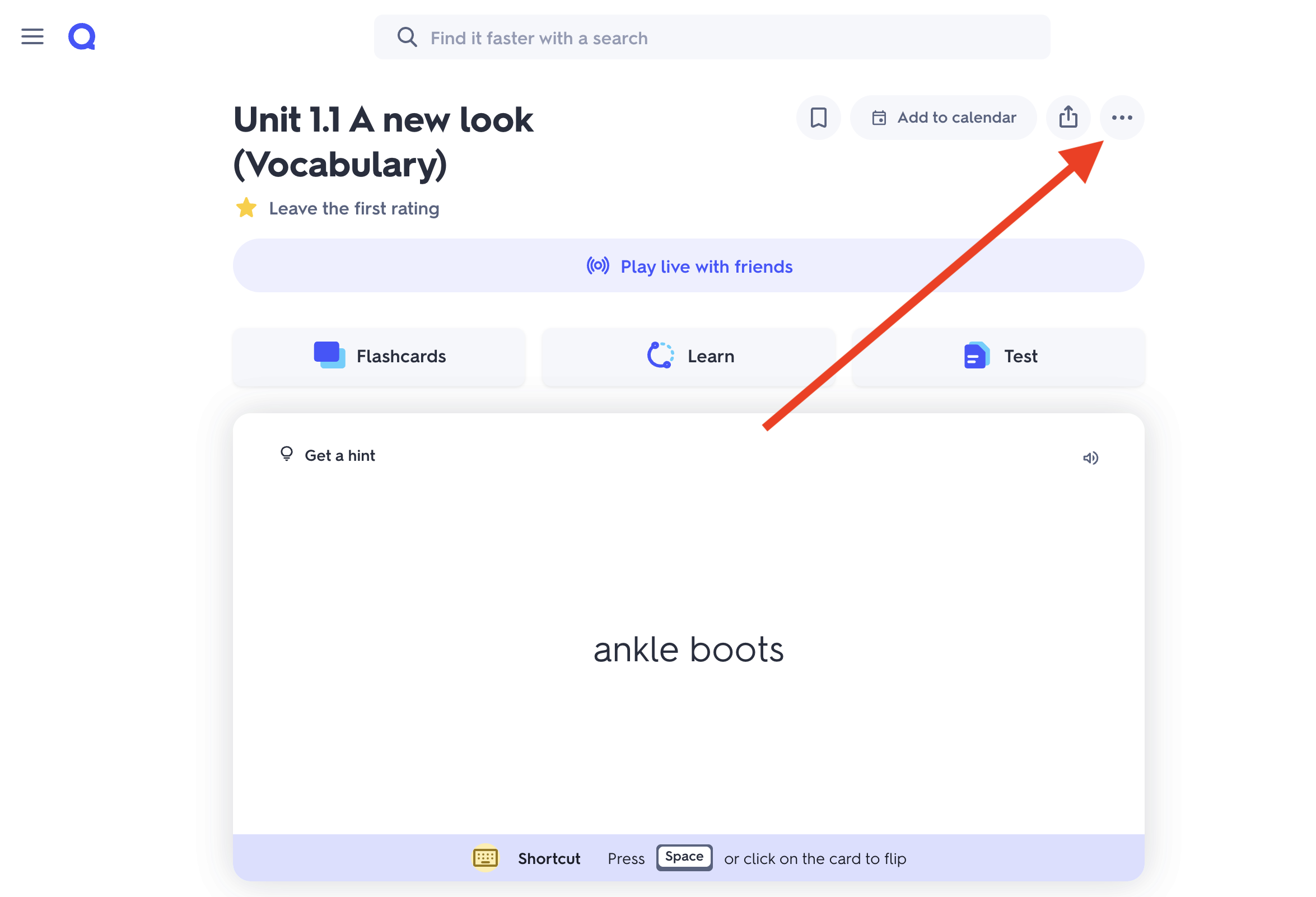
Open your set on quizlet.com and click ⋯ in the top-right corner.
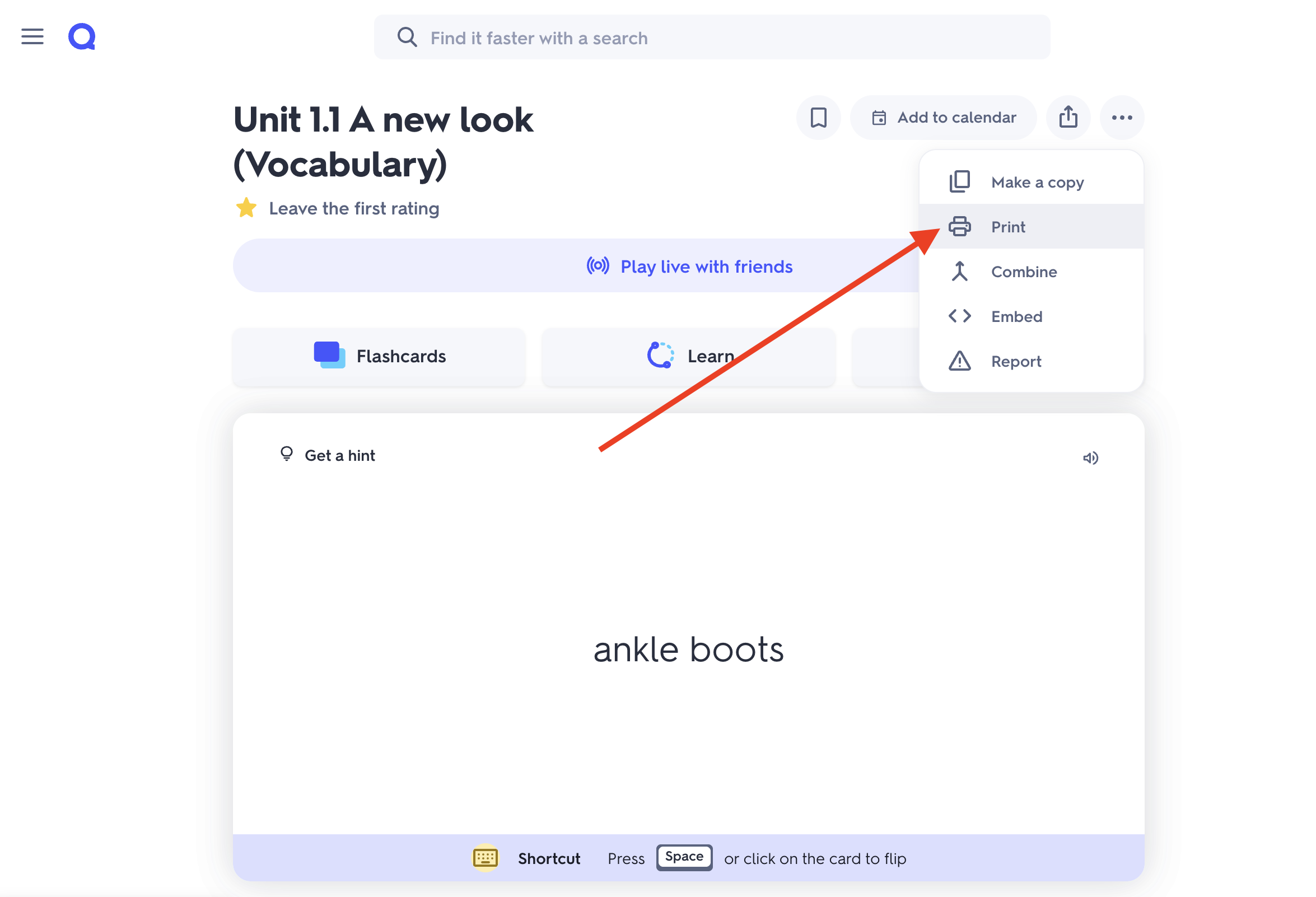
Choose Print.
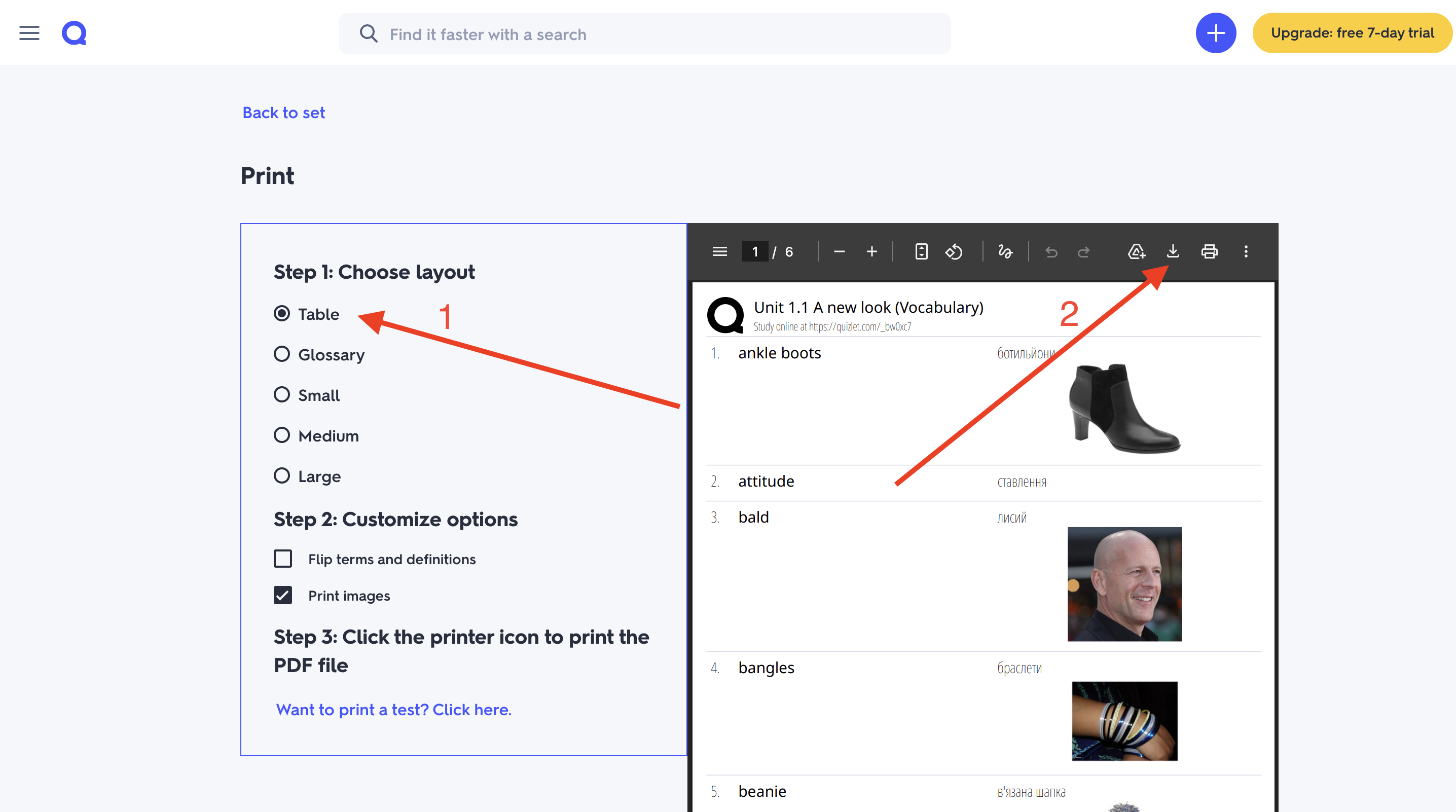
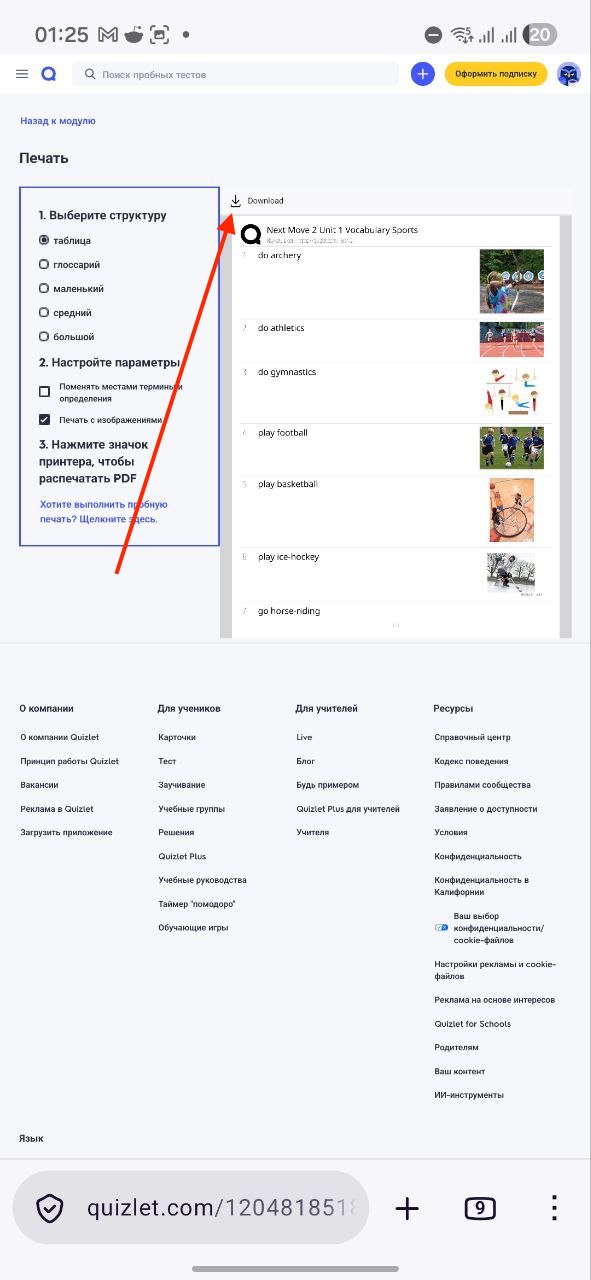
In the preview, leave the Table layout selected on the left — that's the format Atom Translate reads — and click the download icon in the preview toolbar. No system print dialog needed.
Click the "⋯" menu.Choose "Print".Keep "Table", then click the download icon.
On Android — use Firefox
Firefox has a proper Desktop site mode, so Quizlet's print page loads exactly as on a computer, with a Download button that saves the very same table PDF. Other Android browsers hand the page to the system print dialog instead, which lays the file out differently.
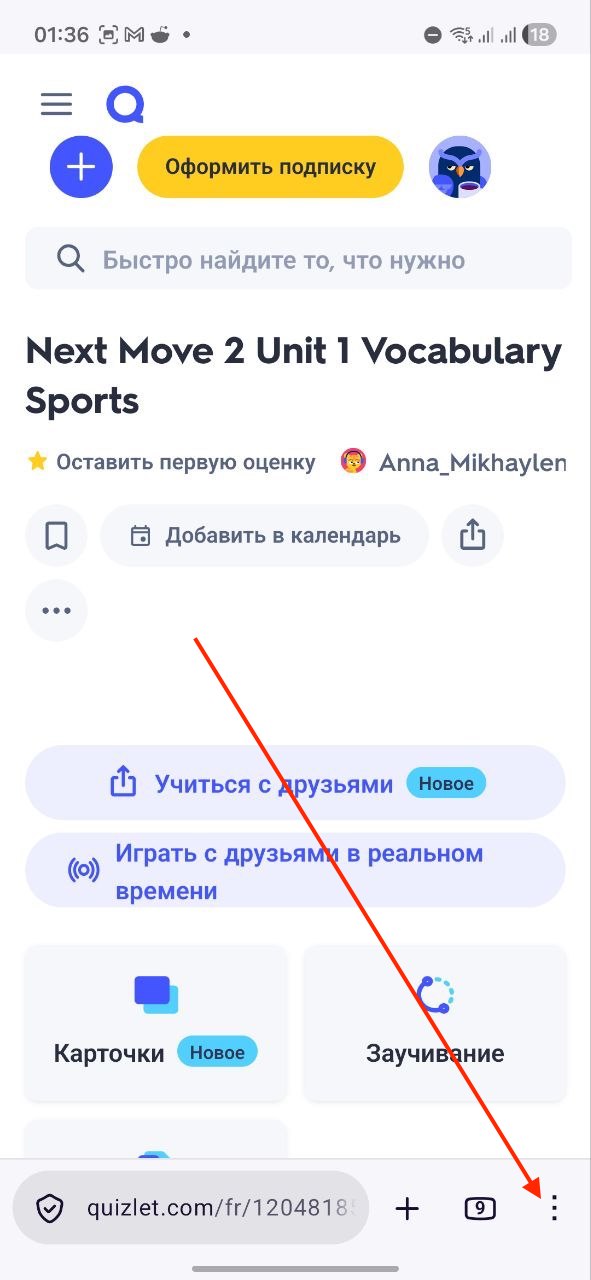
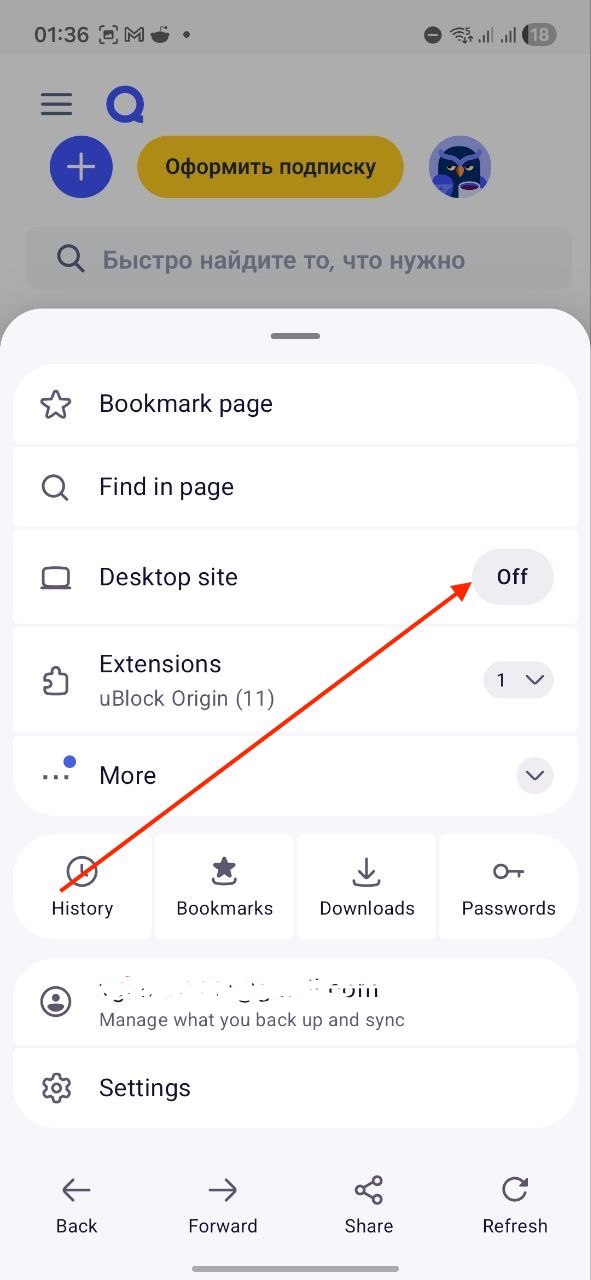
Open the set in Firefox and tap ⋮ in the bottom-right corner.
Switch Desktop site on — the page reloads in its computer layout.
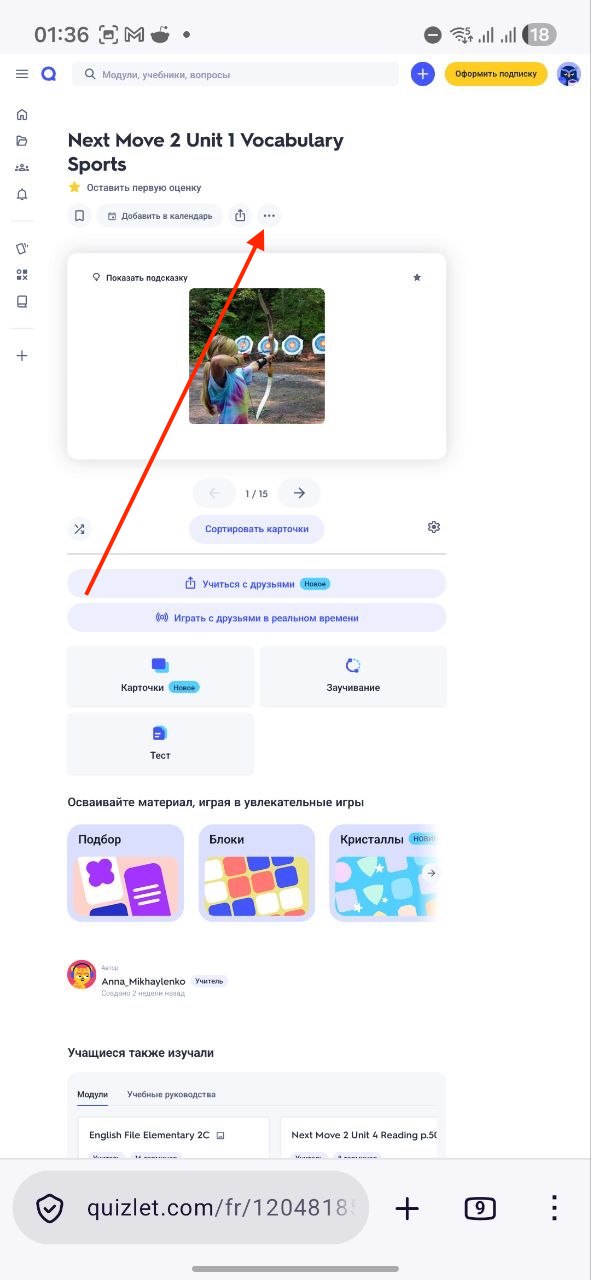
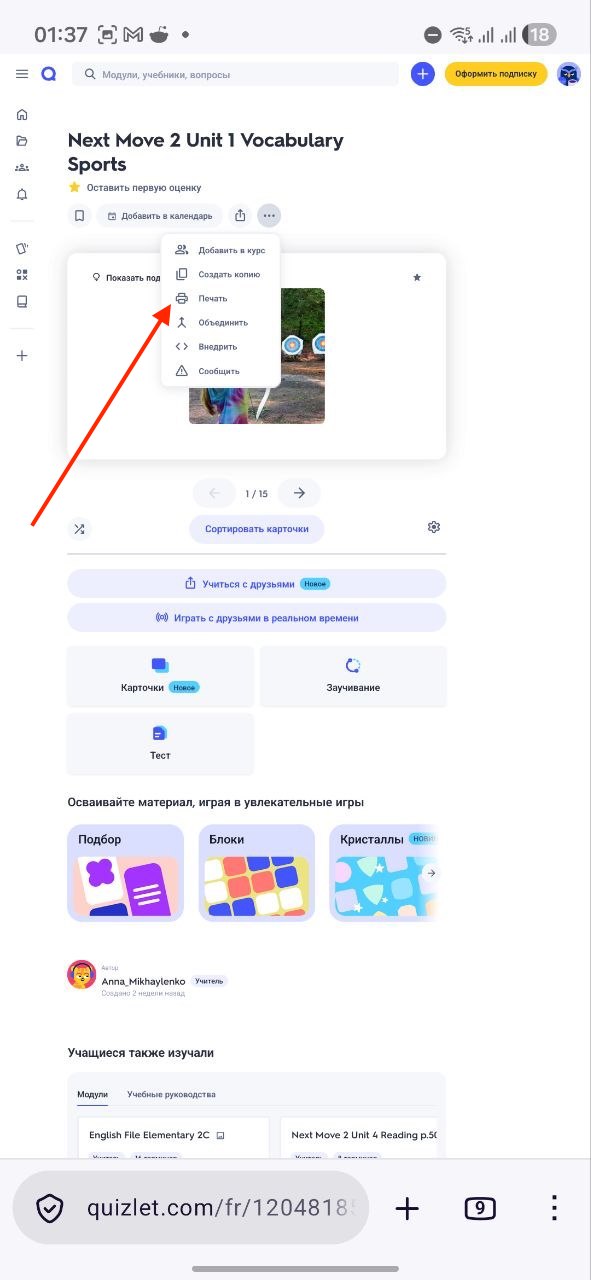
Tap ⋯ on the set, then Print.
Keep the Table layout and tap Download above the preview. The PDF lands in Downloads.
Tap "⋮" in Firefox.Switch "Desktop site" on.On the desktop layout, tap "⋯".Choose "Print".Keep "Table", then tap "Download".
On iPhone and iPad — Quizlet can't make the PDF
There is no way to produce this PDF on iOS: Quizlet's iPhone app has no Print option at all, and on quizlet.com in Safari the print page's download doesn't save a usable file. This is a limitation on Quizlet's side, not in Atom Translate — we can only read the file Quizlet agrees to generate, and on iOS it never generates one.
The workaround: make the PDF on a computer or an Android phone, then either import it in the web app — nothing has to reach your iPhone — or send the file to your iPhone and import it in the app. Importing on iOS works normally; only Quizlet's export doesn't.
2
Import the PDF in the web app
Open app.atomtranslate.com and sign in with your usual account. If the PDF is on the same computer, this is the fastest route — your phone isn't involved at all.
The web app is in beta: most things work, but you may hit rough edges. The phone app (Step 3) is the fully released route.
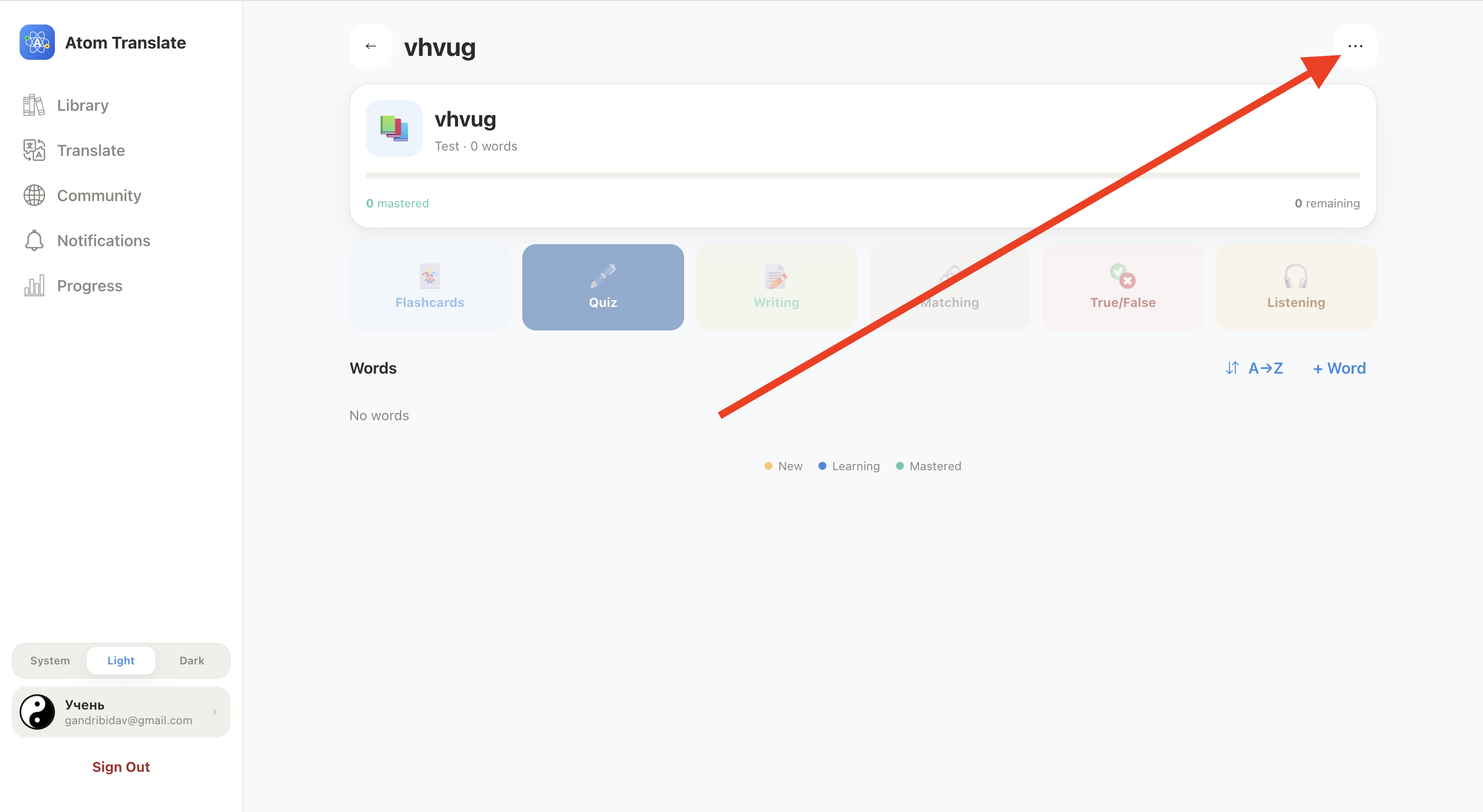
In Library, open the folder you want the words in.
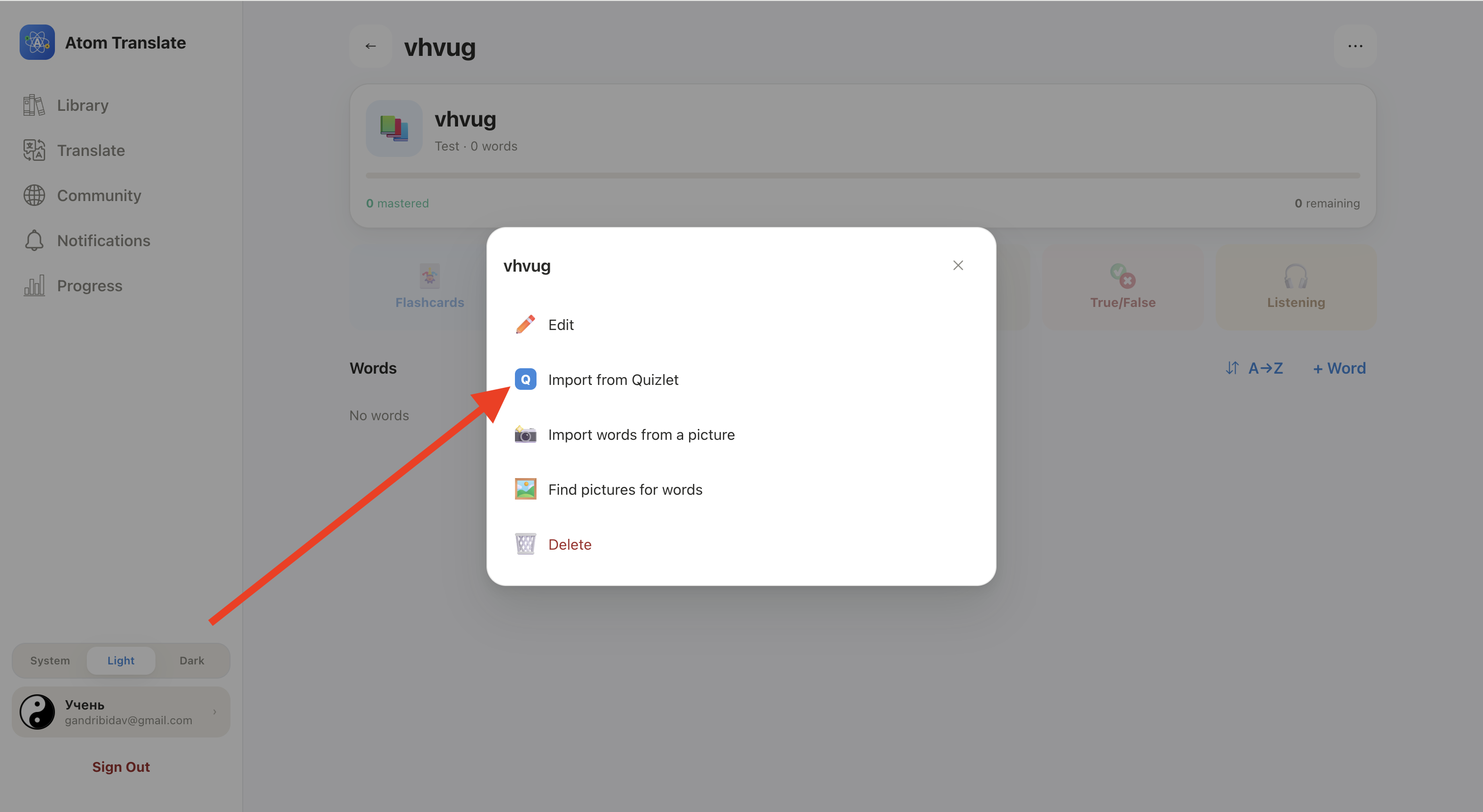
Click ⋯ → Import from Quizlet.
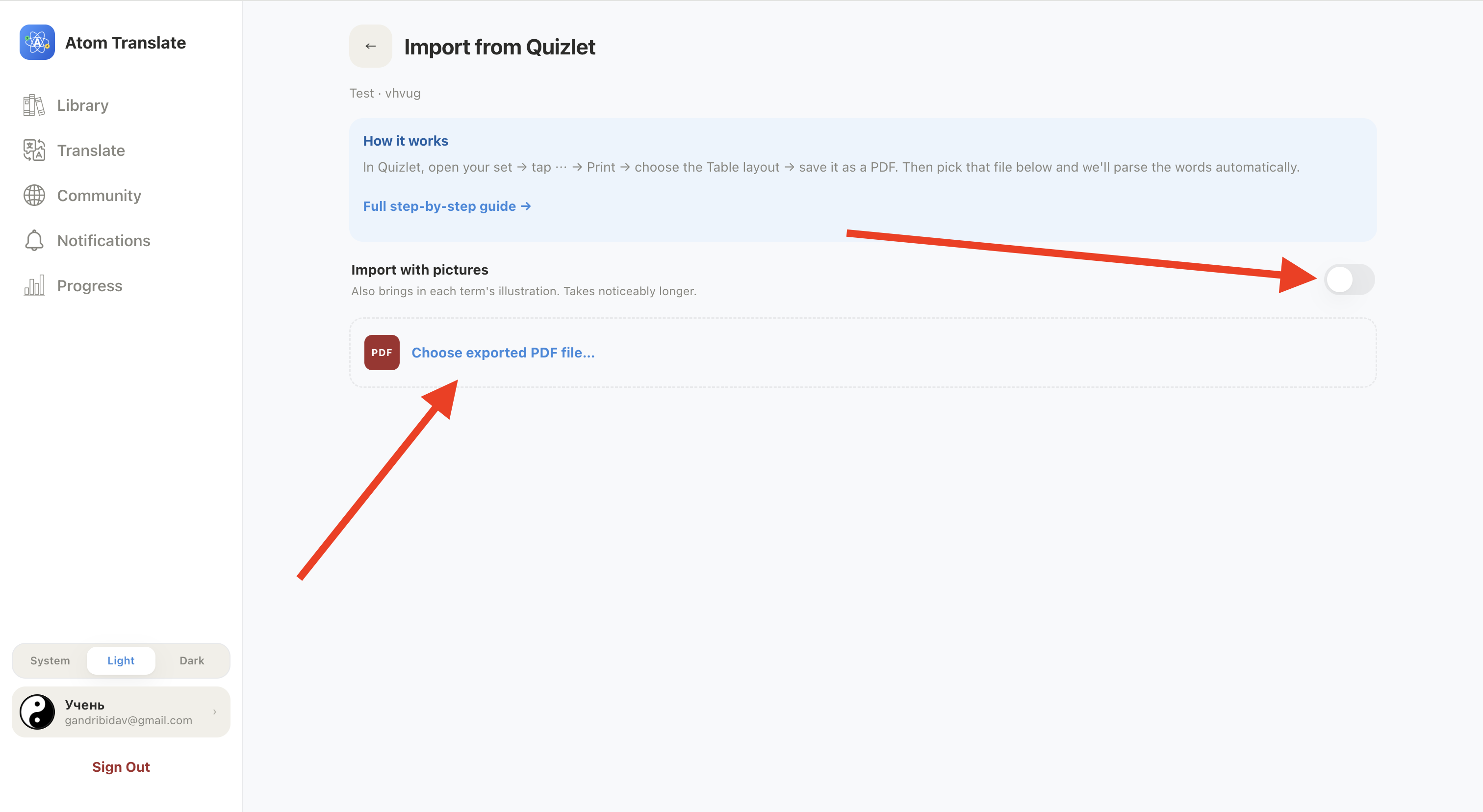
Click Choose exported PDF file... and pick the PDF. Optionally turn on Import with pictures to bring in each term's illustration too — it takes noticeably longer.
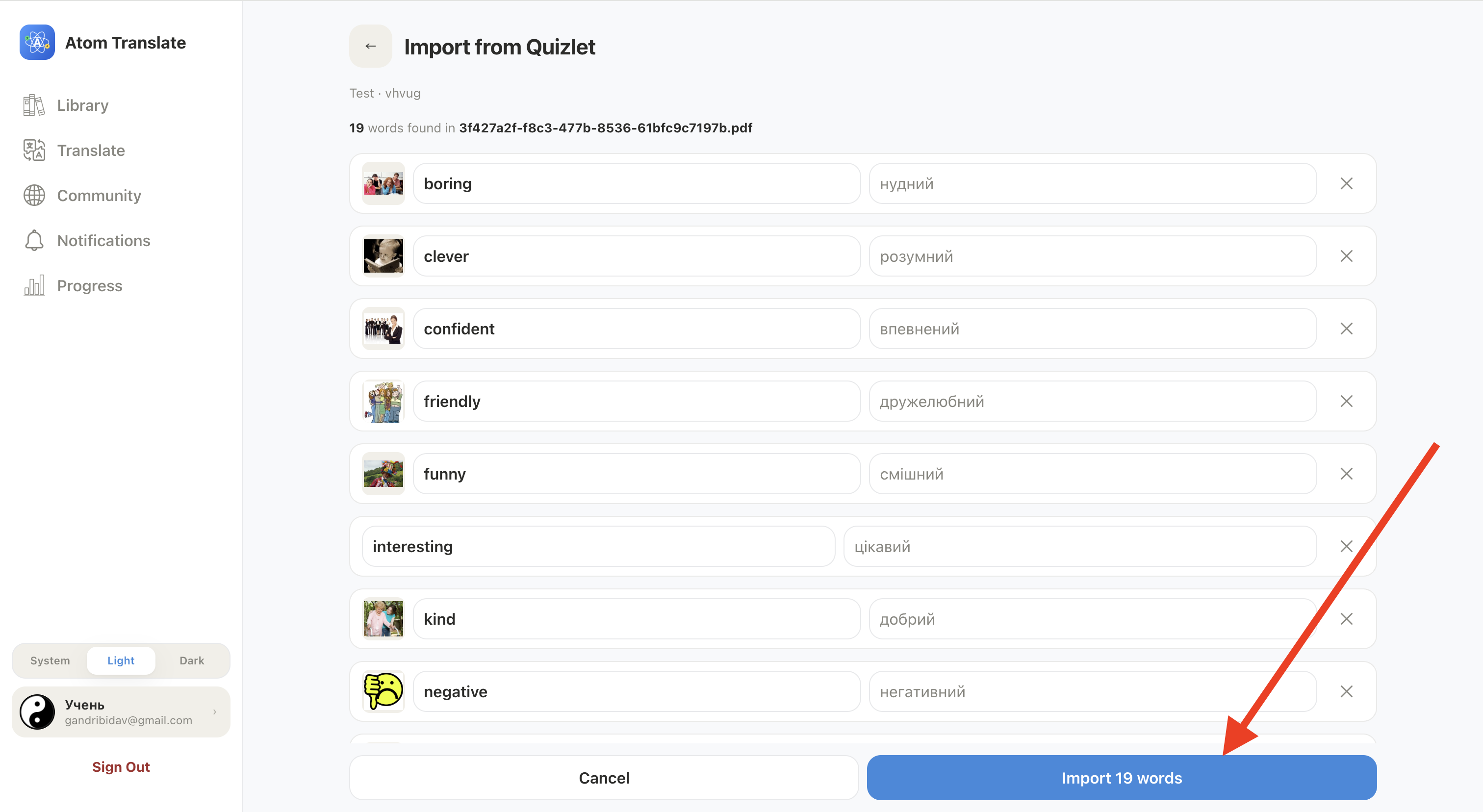
Check the parsed term/translation pairs; fix anything wrong or drop a row with ×.
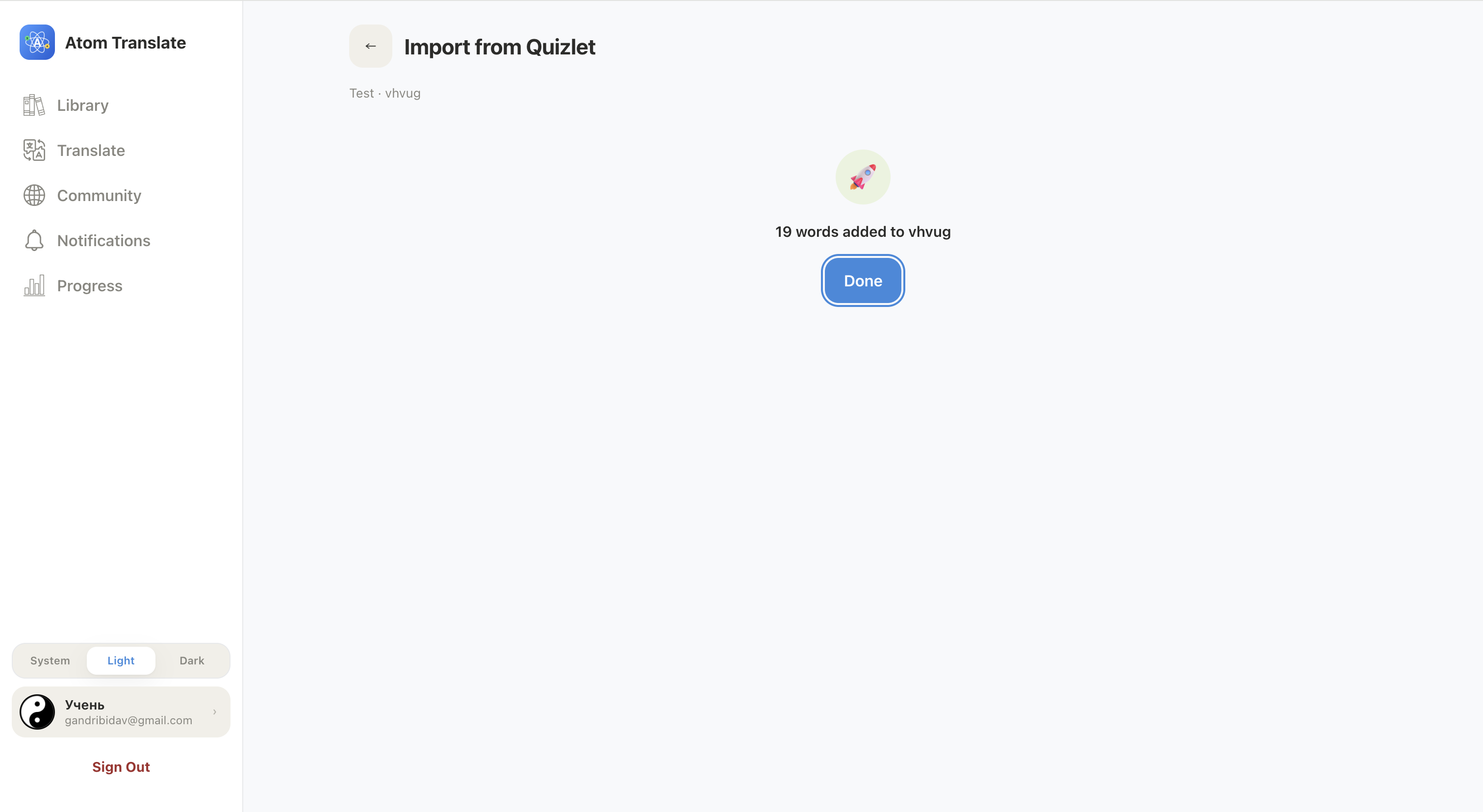
Click Import [number] words. They sync to your phone automatically.
Open the folder, then click "⋯".Choose "Import from Quizlet".Pick the PDF — pictures optional.Review, then click "Import".Done — the words are in your folder.
3
Or import the PDF in the phone app
Same steps in the app. If you made the PDF on a computer, get it to your phone first — email it to yourself, save it to a cloud drive, or use AirDrop / Nearby Share.
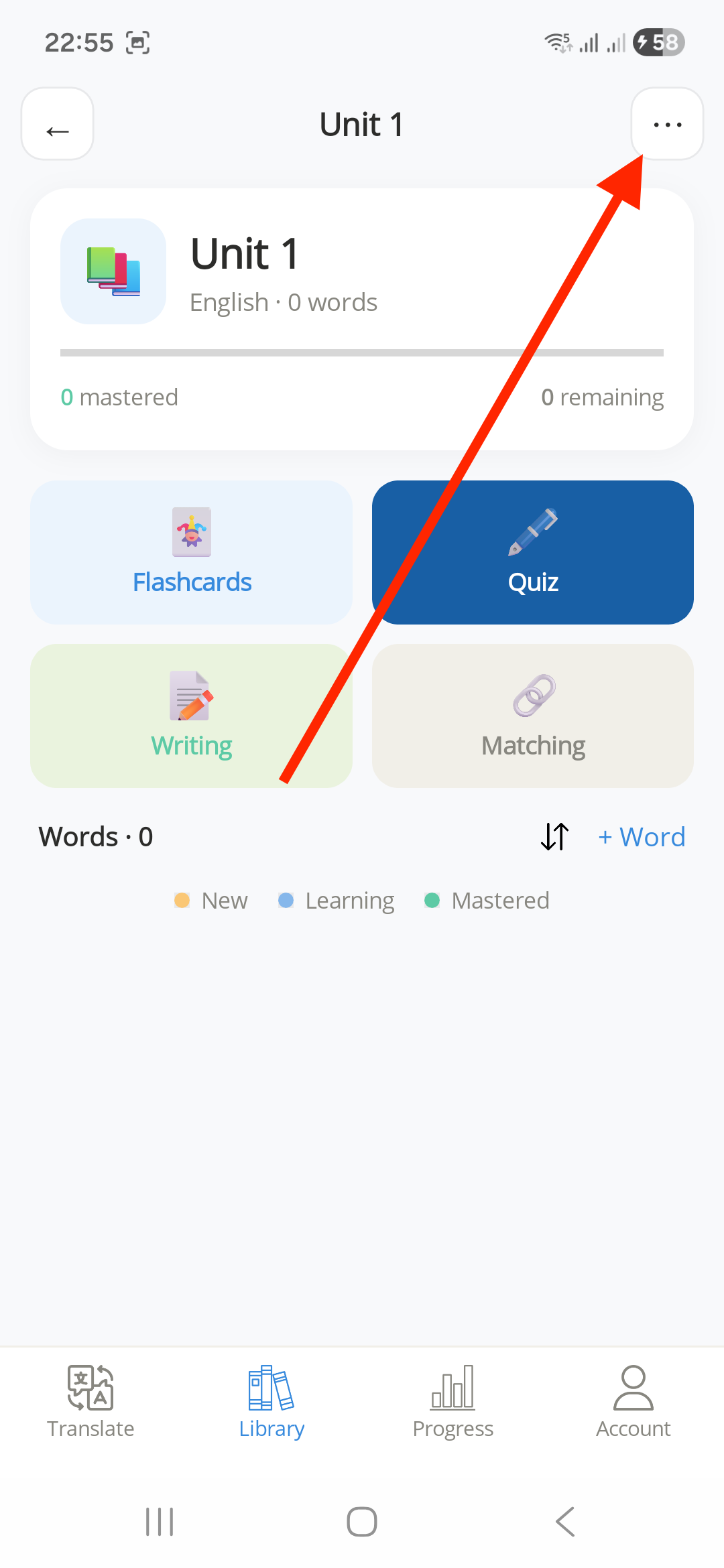
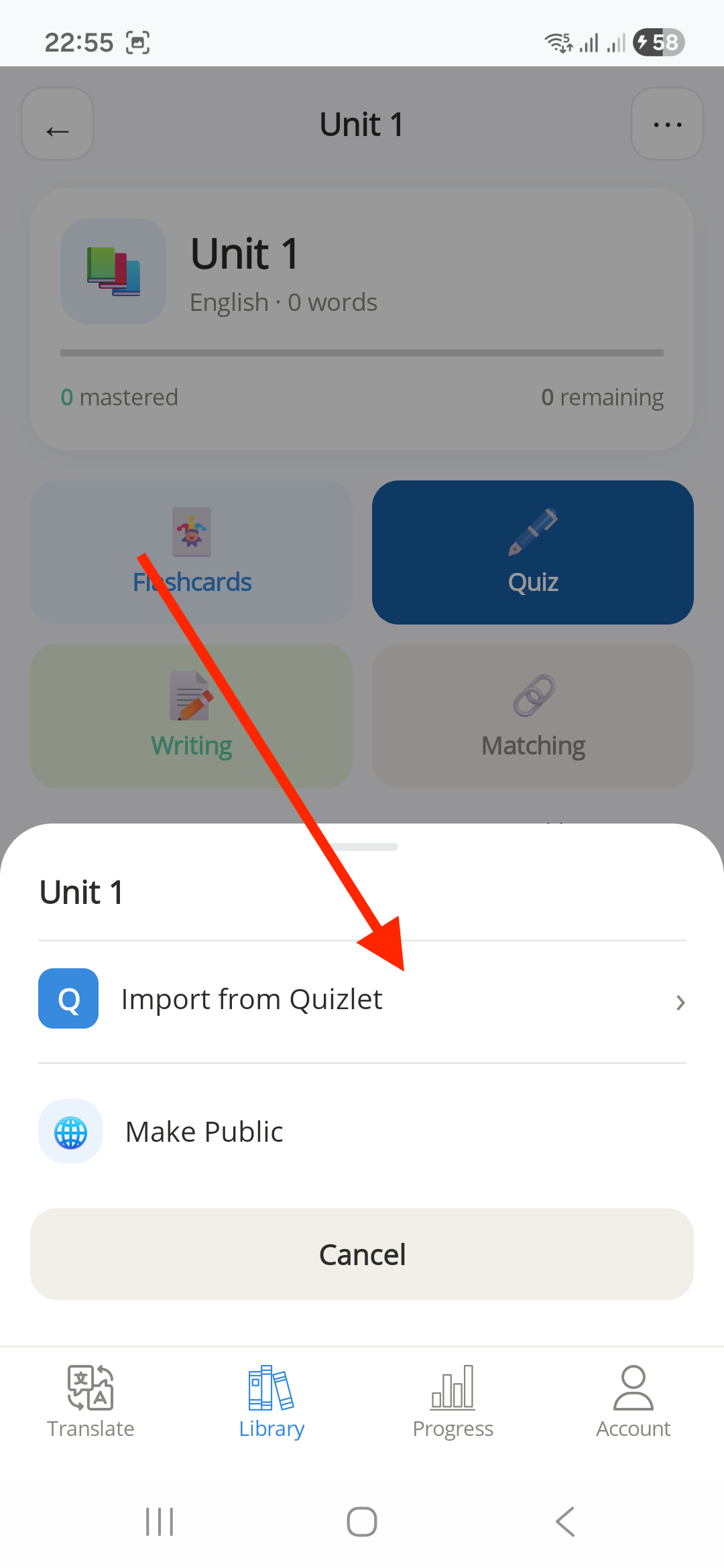
Open the folder, then tap ⋯ → Import from Quizlet.
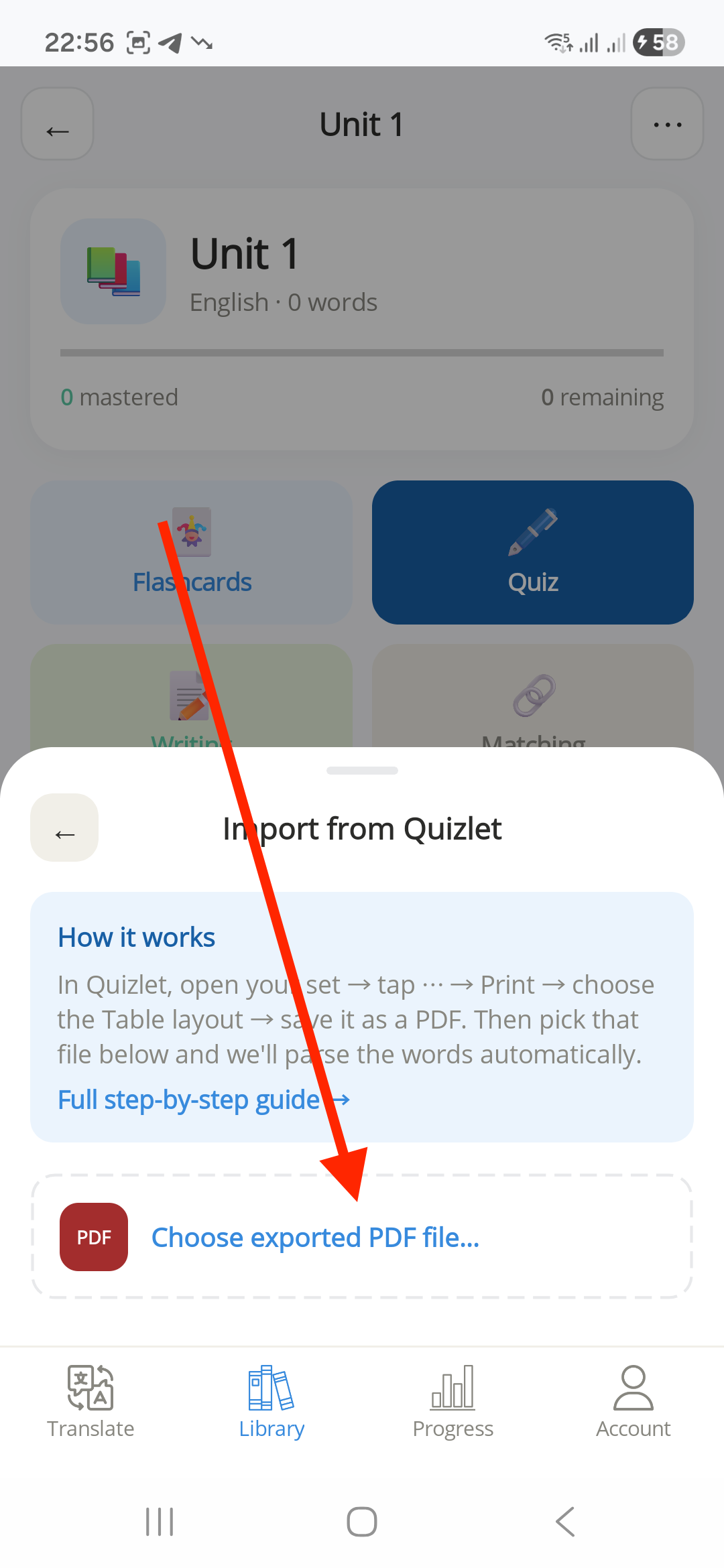
Tap Choose exported PDF file... and pick the PDF from Downloads or Files.
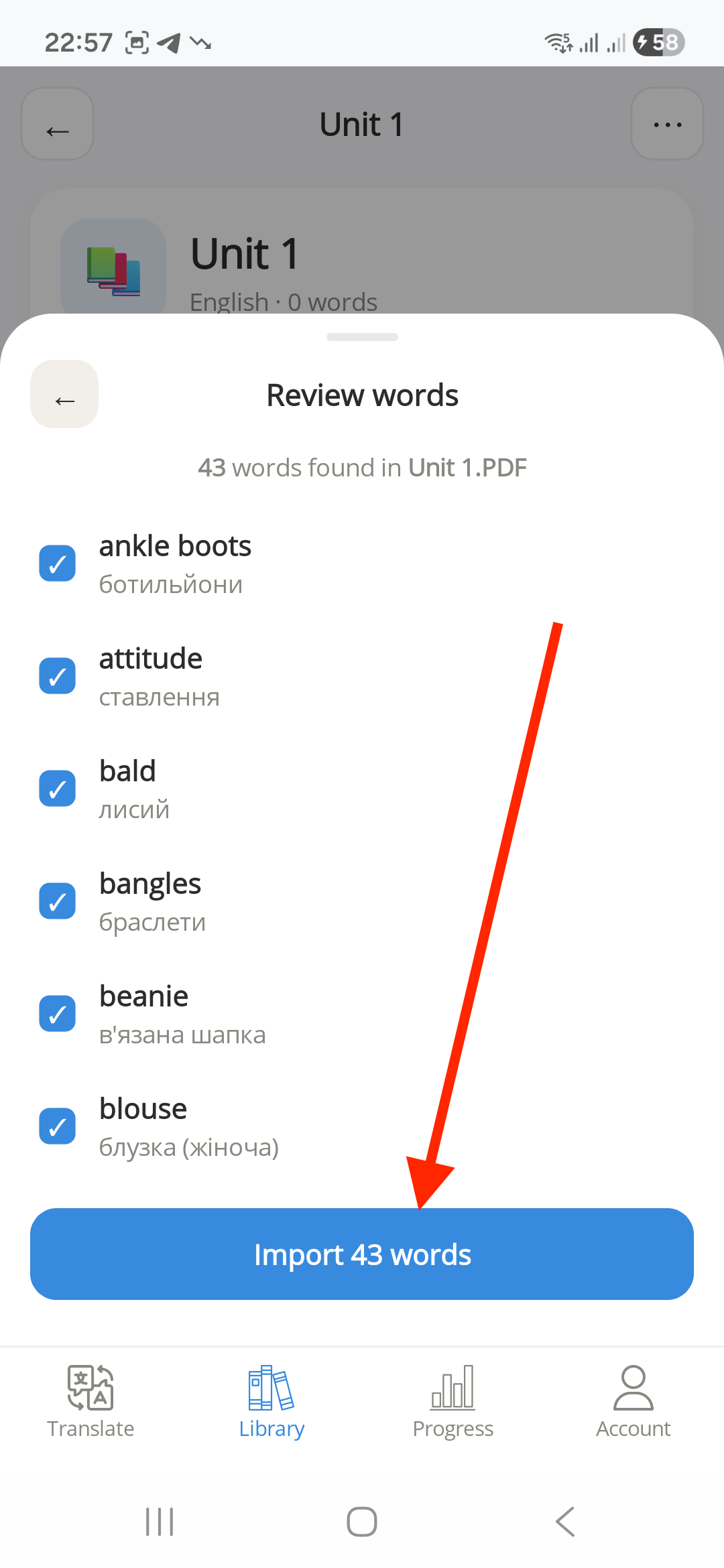
On the Review words screen, uncheck anything you don't want.
Tap Import [number] words — they're added straight to that folder.
Tap "⋯" in the folder.Tap "Import from Quizlet".Choose the PDF file.Review, then tap "Import".
Tips
Always keep the Table layout — other layouts aren't guaranteed to parse.
On Android, export in Firefox with desktop mode on for the same PDF as a computer.
The PDF must be text-based — a screenshot of your set won't work.
Check the review list before confirming; you can also edit words later in your library.
Troubleshooting
There's no "Import from Quizlet" in the menu
Open the ⋯ menu from inside a folder, not from the Library home screen. If it's still missing, update the app or contact support.
Words are missing or came out wrong
Usually the PDF wasn't exported with the Table layout. Re-export with Table selected and try again.
Atom Translate says the file couldn't be read
It has to be a real PDF from Quizlet's Print option — not a screenshot, a Word file, or a renamed file.
I only have an iPhone
Quizlet can't generate the PDF on iOS at all (see Step 1). Export it on a computer or an Android phone, then import it in the web app or send it to your iPhone.